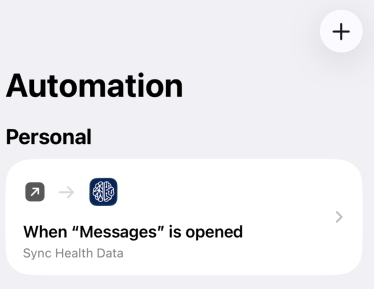
Due to iOS restrictions, the RemNeuro Sync app needs your help to keep health data sharing for long timeframes. Specifically, we need to add an automation to the watch wearer's phone that will tell our app to share data periodically.Enable Long Run Background Syncing
Step 1:
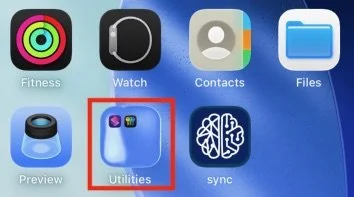
Open the shortcuts app on the watch wearer’s phone. The app comes pre-installed on all recent iPhones. If it is not installed, you can find it on the app store.
(Note that the app is sometimes located in a separate app-folder such as “Utilities”)

Step 2:
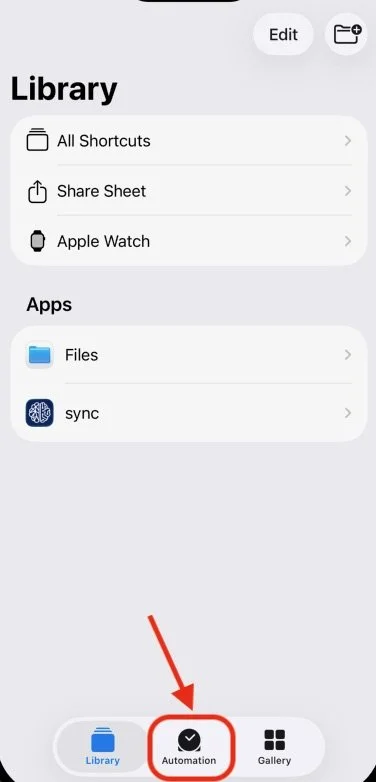
Click the Automation tab at the bottom of the screen
Step 3:
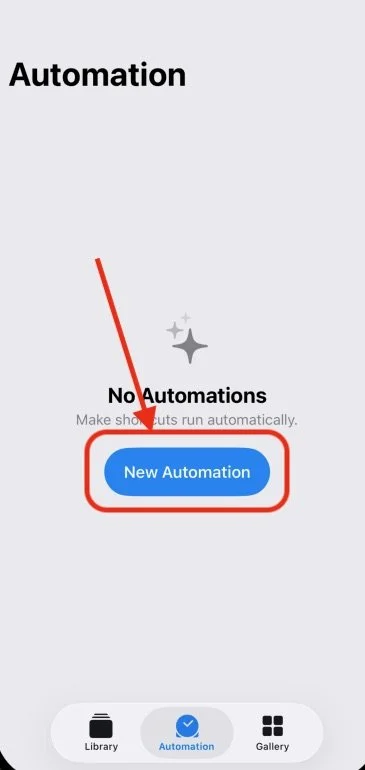
Create a New Automation
Step 5:
Choose App
Step 9:
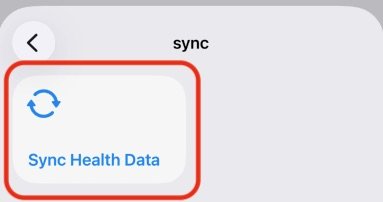
Tap '“Sync Health Data”
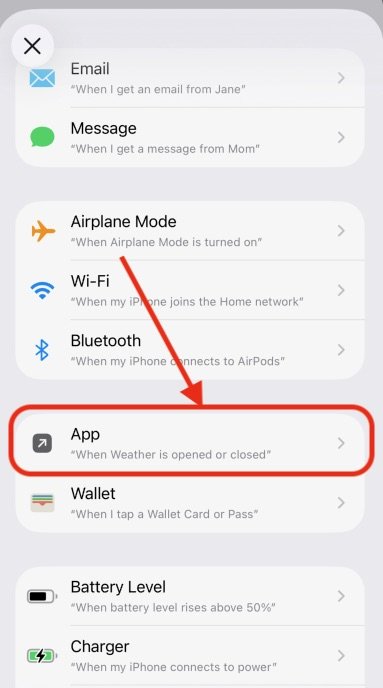
Step 4:
Scroll down and tap App
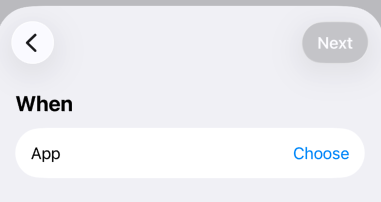
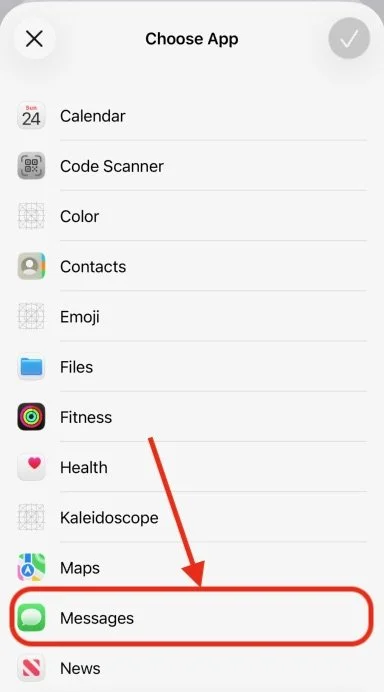
Step 6:
Choose the Messages app
Note, you can alternatively choose another app your senior opens frequently, such as Phone.
The automation can only run when the iPhone is unlocked, so running it at the same time a frequently used app is opened is the most reliable way to get the health data updated frequently.
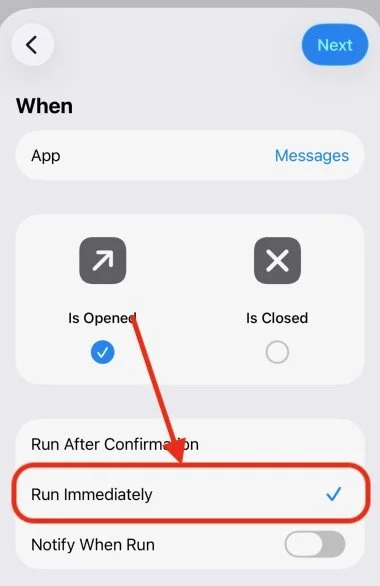
Step 7:
Tap “Run Immediately”. Then tap “Next”
This step ensures a seamless background sync without interrupting your senior to confirm a sync.
Step 8:
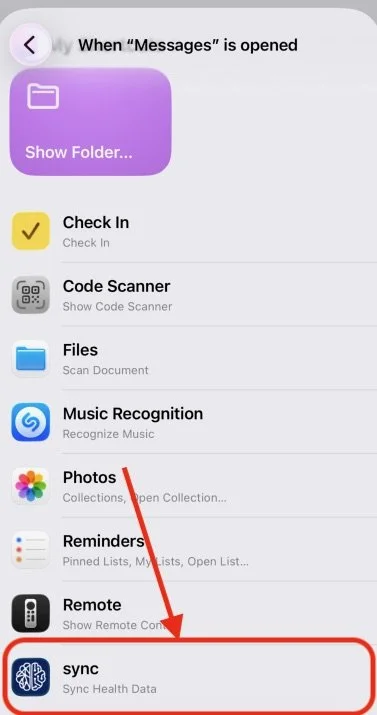
Scroll Down & Tap RemNeuro Sync
All Done! Your automations should now include one like this image.